

Generate Tab
Use Generate to review room-related files and start file-driven generation flows.
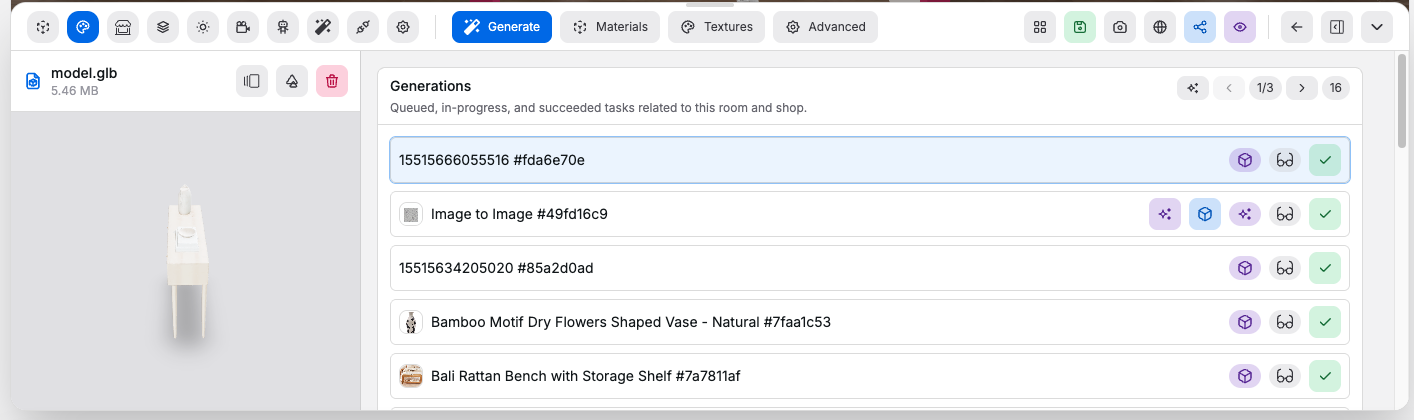
File Sections#
Sections:
3D Assets: groups generated model filesVideos: groups generated or uploaded video outputsImages / Textures: groups generated images and texture assetsMobile Uploads: groups files uploaded from mobile flows- All sections overall: let you inspect, reuse, download, or delete files
Generation Tasks#
Controls:
- Task list: shows queued, in-progress, and succeeded generation tasks
- Status chip: shows whether a task is queued, running, or succeeded
- Type and mode badges: identify flows such as
Text to 3D,Image to 3D,Image to Image,Preview,Refine, orRemesh
File Actions#
Controls:
Inspect: opens the file in the texture canvas inspection flowConvert to 3D: starts a 3D generation flow from an image resultImage to Image: starts an image refinement or variation flowClear: removes a generated file from storage after confirmation
Good to know:
- Files already referenced by the room show as in use
- Deleting an in-use file can break room references