

Camera Drawer
Use the Camera drawer to define how visitors move around and frame the room.
Camera tabs#
Use this drawer to shape the browsing experience of the showroom.
Tabs:
Start: set the first camera position visitors see when the room opensStaging: set a saved view for the selected product or modelControls: tune orbit, zoom, damping, clipping, and interaction limits
Start#
Controls:
- Start position: set and save the visitor's initial camera position with X/Y/Z fields, look-at target, distance, and FOV
- Start marker: show and move the camera marker, target handle, focal direction, and view boundary helper in the scene
Use current view: captures the current editor camera position and targetSnap to start camera: moves the editor camera to the saved visitor start viewSave start camera: saves the start camera for published shop and shop v2 visitorsReset start: restores the default start position and target
Good to know:
- The start camera marker is an optional editor helper
- Saving the room publishes the start camera position, target, and FOV to shop and shop v2
- Camera settings change the viewing experience, not the scene content
Staging#
Controls:
- Staging: select a product or model, set its focus distance and vertical lift, capture the current editor camera as that object's focus view, or reset the object back to room-level focus
Use current view: captures the current editor camera as the selected object's saved viewGo to view: moves the editor camera to the selected object's saved visitor viewReset selected focus: removes the selected object's staging overrideSave staging focus: saves the selected object focus for published shop and shop v2 visitors
Good to know:
- Object staging focus overrides the room-level focus when a shopper selects that product or model
- Capturing the current view saves the exact camera position and target when available
- Manual distance and vertical lift values fall back to the room-level focus target
Controls#
Controls:
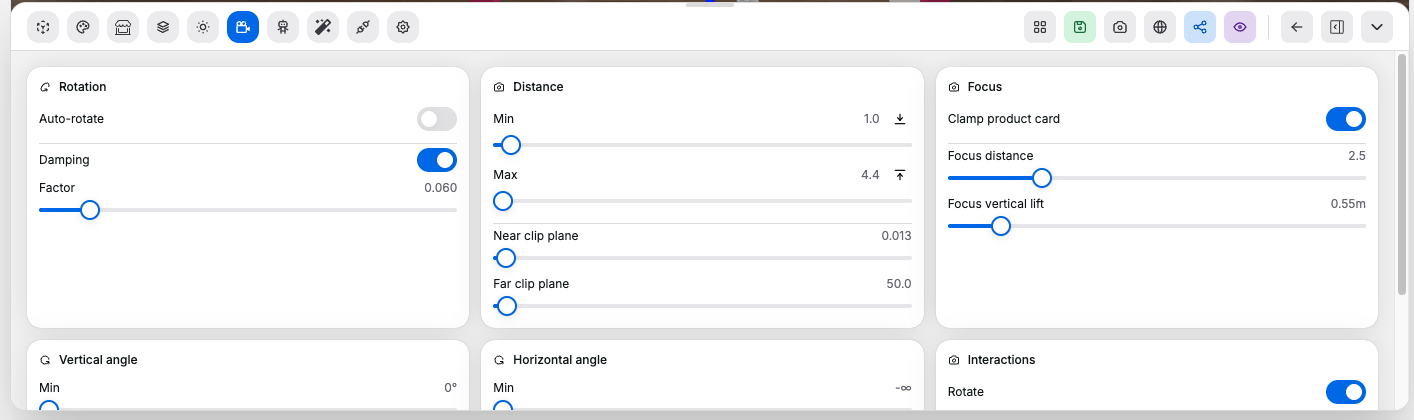
- Auto-rotation and rotation speed: control whether the room slowly rotates on its own and how fast it rotates
- Damping and interaction feel: control how quickly camera movement settles after user input
- Minimum and maximum zoom distance: limit how close or far the viewer can move
- Vertical and horizontal angle limits: constrain camera orbit angles
- Rotation, zoom, and pan permissions: enable or disable those interaction types
- Focus distance and focus lift: control the viewing focus point and its vertical offset
- Near and far clip planes: control what depth range the camera renders
- Set the current camera distance as the new minimum: captures the current zoom level as the closest allowed distance
- Set the current camera distance as the new maximum: captures the current zoom level as the farthest allowed distance
- Reset the camera behavior to defaults: restores the default camera control settings
Good to know:
- Focus settings are useful when product cards or focal points feel too low or too high
- Clip planes matter most in tight spaces or very large rooms