

Past Creatives
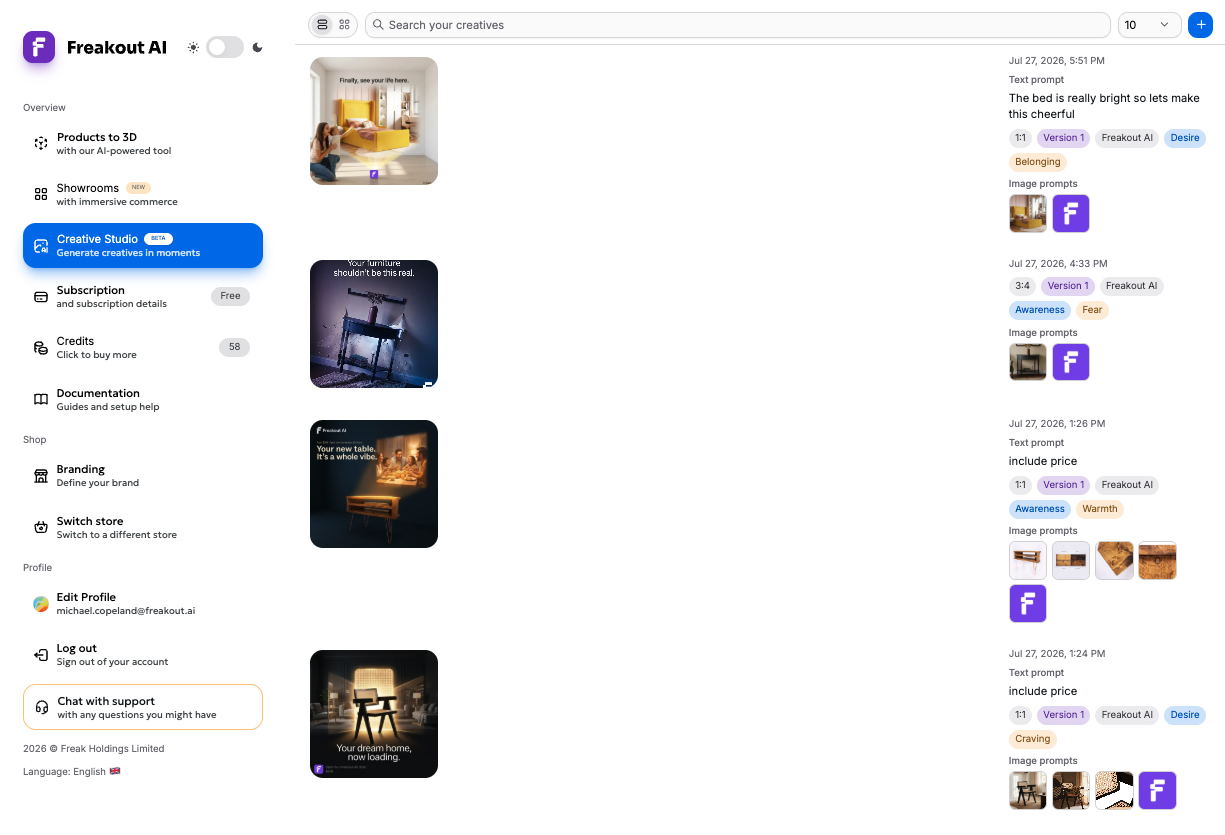
Every creative you generate is saved to your gallery, so you can find it later, compare versions, and reuse the best one. Open Past creatives below the composer in Creative Studio.
Browse and search#
- Switch between Grid view and List view.
- Search your creatives by the text of their brief — the search returns matches from your most recent creatives.
- Use Load more to page through older creatives, and set Results per page to control how many load at once.
Open any creative to see the brief it was built from — the text prompt and the image prompts (reference images) that shaped it.
Versions#
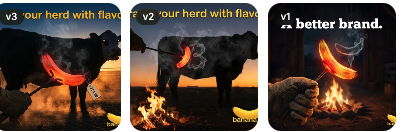
Each time you re-run a creative's brief, the new result is saved as another version of the same creative rather than a separate entry. This keeps every take on one idea together, so you can compare them and pick the strongest. Versions are labelled v1, v2, and so on.
Reuse a creative#
- Download — save the image to use anywhere.
- Use as base — start a new creative from an existing one, carrying its references and brief into the composer so you can tweak and regenerate.
- Push to product — attach the creative to the Shopify product it was sourced from, so it lives alongside that product in your catalog.
Shopify: Pushing to a product needs a connected Shopify store. You can still generate and download creatives without one — they just won't be linked to a product yet.
Good to know#
- Creatives generate in the background — keep working and they'll appear here when ready.
- Each generation costs 9 credits. See Pricing for the full table.
- Creatives are AI-generated and labelled as such wherever they appear; downloaded and pushed images carry an AI-provenance marker. Review before publishing, and disclose AI use where your market requires it.