

Get Started
This guide walks you from installing the Freakout SDK in Unity to playing your first HLS or DASH video in a WebGL build, using the ready-made prefabs and the WebGL template scripts.
1. Installation#
To begin, install the Freakout SDK package into your Unity project. This SDK is specifically designed for compatibility with the WebGL build target.
2. SDK Structure and File Locations#
After installation, the following key directories and files will be available:
📁 /Assets/FreakoutSDK/#
- Contains scripts and prefabs.
- Prefabs can be reused or modified directly in your scene.
📁 /Packages/FreakoutSDK/WebGL Templates/#
- Contains:
FreakoutSDK.jshls/hls.min.jsindex.html(Example template showing how to integrate scripts)Dash/dash.all.min.jsMake sure to include
FreakoutSDK.js,hls.min.js,dash.all.min.jsin your WebGL template for proper video streaming support.
3. License Activation (for non Unity Asset Store version)#
- The SDK license is activated per domain.
- Testing on
localhostis always free. - For activation steps, follow the [License Activation Instructions].
4. Quick Start: Using the Video Player Prefab#
The SDK includes ready-to-use prefabs for rapid integration.
Location#
After importing the Freakout SDK Unity package, you’ll find the sample prefab located at: Packages/FreakoutSDK/ To integrate our ready-to-use video prefab:
- Open Package Manager (Window -> Package Manager) and find the FreakoutSDK that you integrated.
- Go to the Samples tab and press import:
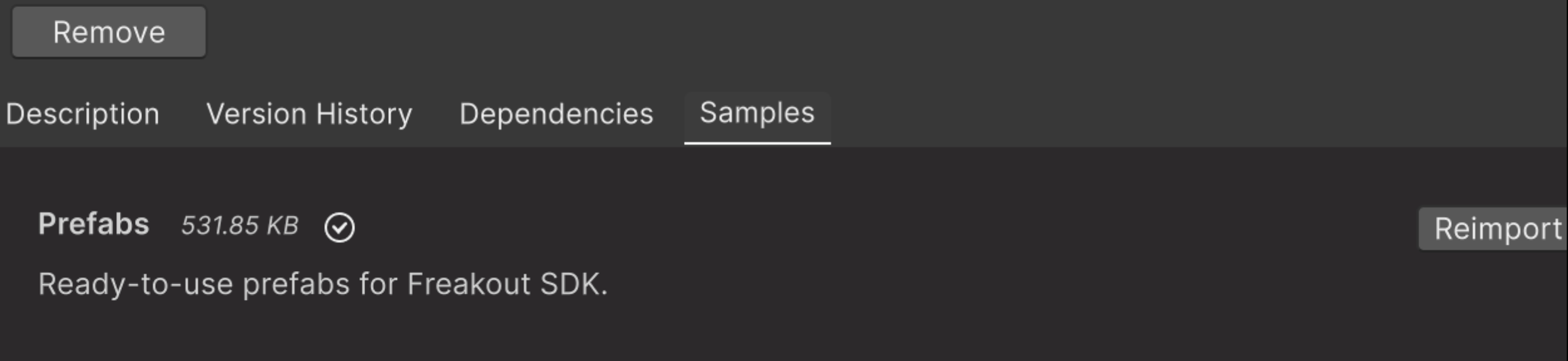
- This will import a new folder into your Assets directory (usually under
/Assets/FreakoutSDK/Prefabs..). - The sample contains ready-to-use prefabs. You can also observe the full capability of FreakoutSDK, by exploring our Demo project. Please note, this demo requires LeanTween and TMPro. We recommend installing it before installing our Demo Scene. Download Demo Scene here.
.png)
Prefab. Activating UI.#
- With UI – Includes UI player controls (play, pause, stop, volume, etc.). Deactivated by default. In order to activate it, just enable the parent UI gameObject.
.png)
Note: For UI-enabled prefabs, ensure your scene includes an EventSystem to enable UI interaction.
Adding to Scene#
- Add SDK manager to any GameObject in the scene.
.png)
- Add the desired number of video entries in the Video Contents list by clicking the “+” icon. Each entry represents a video that will be linked to a separate video GameObject in your scene.
For example, if you plan to display 3 different videos simultaneously, add 3 entries.
For each entry, configure the following:
- Name – for easy reference
- Video URL – supports .mp4, HLS .m3u8, or DASH .mpd formats
- Start on Init – whether the video should begin playing automatically once ready
Important: Each video is assigned an index based on its position in the list (e.g., 0, 1, 2). You’ll need to reference these indexes when assigning the correct video source to each player in the next step.
- Drag and drop the prefab into your Unity scene. Specify VideoSource index from step 2.
.png)
- Make sure to set the correct video index in the SdkVideoUIControl.cs component on the VideoControlPanel GameObject. This links the UI controls (play, pause, mute, etc.) to the appropriate video source by index.
.png) 💡 Tip: We recommend using SdkVideoUIControl.cs as a starting point if you plan to build your own custom video UI.
🧩 If UI controls are not needed, you can simply disable or remove the UI elements from the prefab.
💡 Tip: We recommend using SdkVideoUIControl.cs as a starting point if you plan to build your own custom video UI.
🧩 If UI controls are not needed, you can simply disable or remove the UI elements from the prefab.
- Make sure to set the correct video index in the SdkVideoUIControl.cs component on the VideoControlPanel GameObject. This links the UI controls (play, pause, mute, etc.) to the appropriate video source by index.
- - DONE.
Warning
Important: In step 2, avoid enabling the StartOnInit flag unless a corresponding Video Source Index is assigned in step 3 for that specific entry. Enabling StartOnInit without a valid index reference may cause the video player to initialize without proper configuration.
.png)
Prefab structure#
Video_NUMBER (Root GameObject with VideoSDKSource)
├── Canvas
│   └── VideoControlPanel        // Contains built-in UI controls in SdkVideoUIControl
│       ├── State
│       ├── Play_Pause_Button
│       ├── Stop
│       ├── Mute
│       └── Slider
The following methods are available via VideoPlayerController. You can inspect SdkVideoUIControl.cs to see an example of usage with UI controls**:**
private VideoPlayerController PlayerController { get { return SdkManager.Instance.GetPlayerControllerAtIndex(PlayerIndex); } } private VideoPlayerController PlayerController { get { return SdkManager.Instance.GetPlayerControllerAtIndex(PlayerIndex); } } // accessing the controller
PlayerController.StartPlayer();            // Starts playback using assigned VideoContent
PlayerController.StartPlayer("url");       // Starts playback with custom URL
PlayerController.StopPlayer();             // Stops playback
PlayerController.PausePlayer();            // Pauses playback
PlayerController.ResumePlayer();
PlayerController.SetMuted(bool);           // Set mute or unmute
PlayerController.SetVolume(0.5f);          // Sets volume (0.0 to 1.0)
PlayerController.Shutdown();               // Releases and cleans up the video player
Info
By default, all videos will start muted. However, if you'd like to start the video unmuted on start, you can check for the corresponding video index and call "SetMuted", in the SdkVideoUIControl.cs, for example:
 private void OnVideoManagerInitialized(object sender, System.EventArgs e)
        {
            PlayerController.VideoEventReceived -= PlayerController_VideoEventReceived;
            PlayerController.VideoEventReceived += PlayerController_VideoEventReceived;

            if (PlayerIndex == 0)
            {
                PlayerController.SetMuted(false); // explicitly unmute
                _bMuted = false; // update internal state
            }
        }
🎨 The following methods to control material are available via SdkVideoSource:
SdkVideoSource.SetGamma(1.2f);         // Adjusts gamma level of the video material
SdkVideoSource.SetBrightness(0.8f);    // Adjusts brightness level of the video material
SdkVideoSource.SetContrast(1.0f);      // Adjusts contrast level of the video material
SdkVideoSource.SetShaderParams(gamma, brightness, contrast);
// Convenience method to set all three at once
The url in the 1st step of integration is a public field in the script. If you know the video URL in advance, you can assign it directly in the Inspector. Alternatively, you can set it at runtime and call the PlayerController.StartPlayer("url") in the specific PlayerIndex component. By inspecting the prefab, you can make your own way of utilizing our SDK.
Warning
Please note that the video preview does not work in the Editor mode. If you need any help, do not hesitate to reach us!