

Overview
Creative Studio turns your product images into finished marketing creatives — a single, on-message image built around one idea, one emotion, and one clear call to attention. Start from a product in your catalog or your own uploads, describe who it's for and what it should do, pick a shape, and generate.
What you get#
- A billboard-grade creative built from your product image and a short brief.
- Native output shapes for every placement — square, landscape, portrait, and more.
- On-brand results when you attach a saved brand: logo, colours, voice, and safety rules are applied automatically.
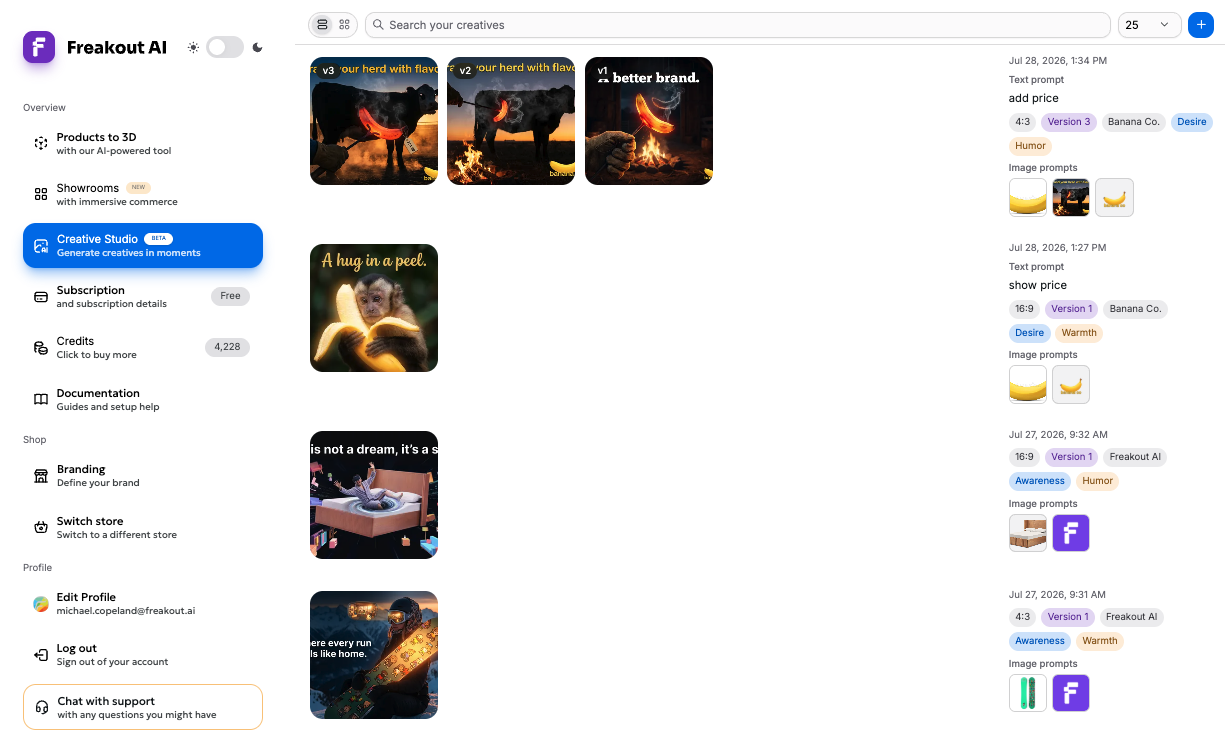
- Every generation kept as a version in your gallery, so you can re-run, compare, and push the winner to your Shopify product.
What you can make#
Each creative leads with one idea and one feeling, with small corner branding and — when the product has one — the live price. The emotional target you pick sets the mood; this one leads with craving.

Change the brief — a different audience, goal, or emotion — and the same product image becomes a completely different campaign. Browse more in your gallery.
How it works#
Creating a creative is a three-step flow. Move through Source → Brief → Format, then press Generate.
1. Source#
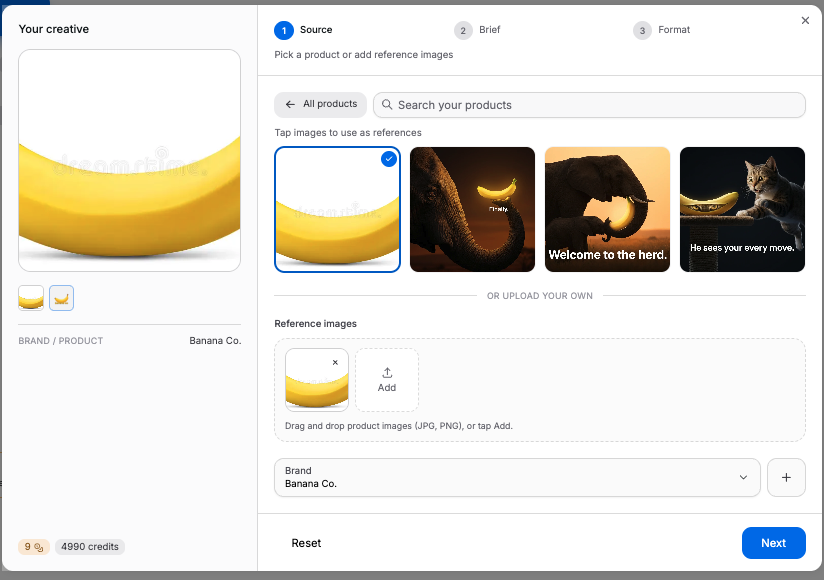
Pick where the creative starts from.
- Source from a product — choose a product from your catalog and tap its images to use them as references.
- Upload your own — drag and drop your own reference images (JPG or PNG).
You can combine both. A creative uses up to five reference images. When you attach a saved brand with a logo, the logo takes one of those slots, leaving four for your own images.
2. Brief#
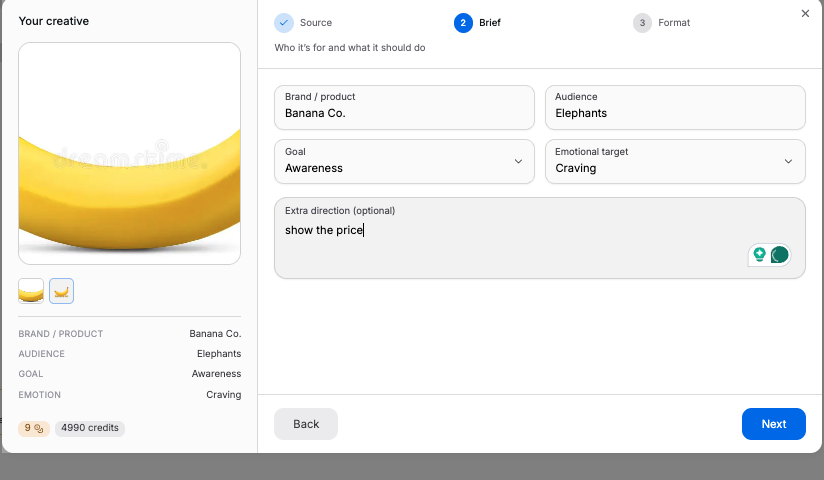
Tell Creative Studio who the creative is for and what it should do. See the full brief reference for every field and option.
- Brand / product — what you're advertising (e.g. Acme — trail running shoes).
- Audience — who the creative is for.
- Goal — the one job this creative should do: Awareness, Desire, Behavior change, or Repositioning.
- Emotional target — the single feeling to lead with, from Warmth and Craving to Awe, Nostalgia, and Calm.
- Extra direction (optional) — anything specific you want included.
- Brand (optional) — a saved brand to apply.
3. Format#
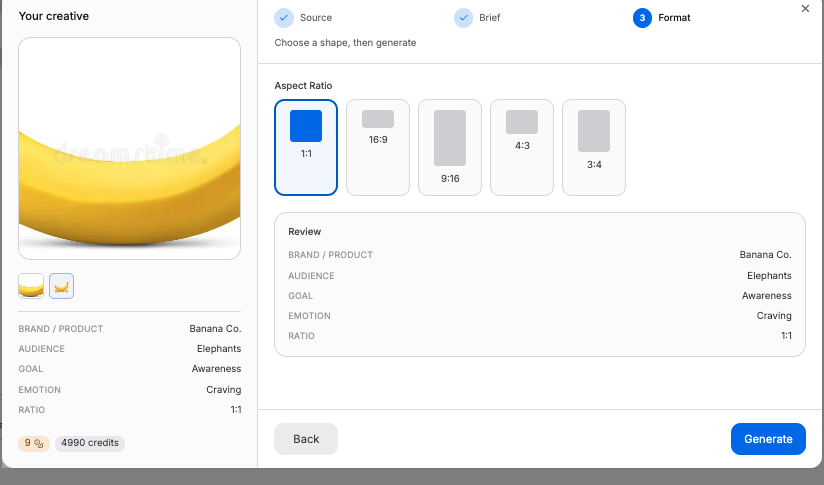
Choose the shape, then generate.
| Aspect ratio | Best for |
|---|---|
| 1:1 | Feed posts, product tiles |
| 16:9 | Landscape banners, video thumbnails |
| 9:16 | Stories, Reels, vertical placements |
| 4:3 | Classic display and email |
| 3:4 | Portrait posts and cards |
Generate#
Press Generate. A creative takes about a minute — you can keep working while it runs. When it's ready it appears in your results and in your gallery.
Each creative costs 9 credits (Nano Banana Pro image-to-image). See the Pricing page for the full credit table.
After you generate#
- Download the image to use anywhere.
- Re-run the same brief to get a fresh take — each run is saved as a new version.
- Use as base to build a new creative from an existing one.
- Push to product to attach the creative to the Shopify product it came from.
Learn more in Past creatives.
AI-generated content. Creatives are made with AI and are labelled AI-generated throughout Creative Studio; downloaded and pushed images carry an AI-provenance marker. Always review a creative before publishing, and disclose that it is AI-generated where your market or platform requires it (for example under the EU AI Act).
Tips for better creatives#
- Use clean, well-lit product images with clear edges.
- Keep the brief specific: a concrete audience and one goal beat a long wishlist.
- Pick one emotional target — leading with a single feeling reads stronger than mixing several.
- Attach a saved brand so logo, colours, and safety rules are applied every time.