

Animations Tab
Use Animations to add motion to the selected object and choose when each animation runs.
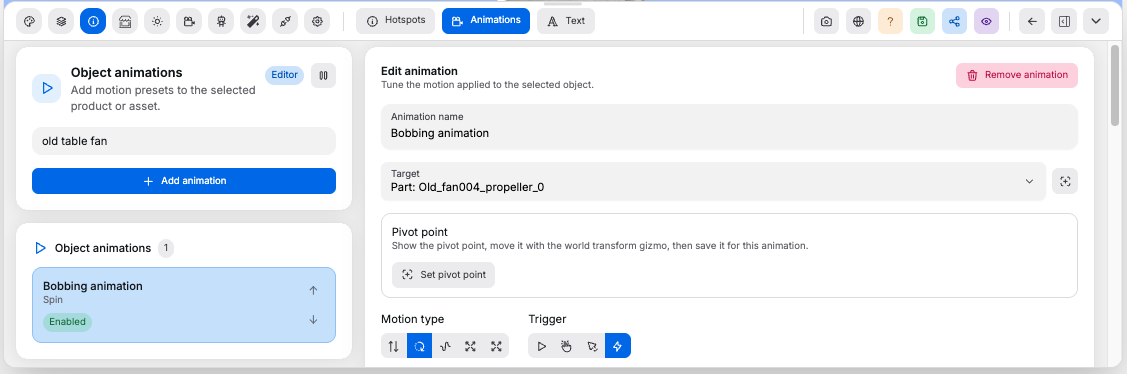
Animation List#
Controls:
Add animation: creates a new motion record on the selected objectPlayorPausepreview: pauses editor playback without changing the saved animation- Delete button: removes the selected animation
Animation Settings#
Controls:
Motion type: choosesBobbing,Spin,Sway,Pulse, orExplodeAxis: chooses the movement or rotation axis for animations that use oneDirection: chooses clockwise or counter-clockwise forSpinandSwayAmount: controls the movement, rotation, or scale amplitudeSpeed: controls the animation speedPhase: offsets the animation timingLoop: repeats the motion instead of playing it onceEnabled: turns the animation on or off without deleting it
Trigger#
Trigger controls when the animation runs.
Controls:
Always: runs continuously while the room is openHover: runs while a shopper hovers over the objectOn select: runs while a linked annotation card is open; pair the animation to a card withTrigger animationon the Hotspots tabModel event: runs when shoppers click a specific model part; not available on scene geometry
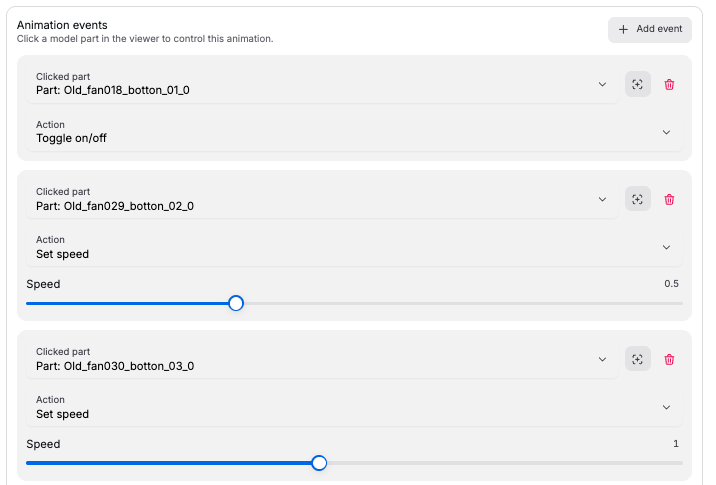
Model Events#
Shown when Trigger is Model event. Each event maps a clicked model part to an animation action.
Controls:
Add event: appends a new event entryClicked part: chooses which mesh or node fires the event; the crosshair button enters scene-pick mode, then the next part you click in the viewer fills this fieldAction: choosesToggle on/off,Turn on,Turn off, orSet speedSpeed: the absolute speed applied whenActionisSet speedRemove event: deletes the event entry
Good to know:
Directionis stored through signedSpeed: positive is clockwise, negative is counter-clockwise- Multiple enabled animations on one object are combined
Explodeis only available for placed products and uploaded models, not scene geometryHover,On select, andModel eventtriggers easeExplodeanimations into their triggered state; ending the trigger resets targeted child meshes to their saved transforms- The animation editor flashes the selected object, component target, or event clicked part with a mesh highlight so you can see what each target selector controls
- Saved product animations and hotspot data appear in shop v2